Create Your First Gobii
This guide walks through the first successful setup: describe the job, create the Gobii, review its first plan, add useful context, and keep approval boundaries clear.
1. Start from a goal
Open Gobii and describe the role you want filled. Use plain business language.
Strong prompts include:
- "Create a Gobii that prepares a weekly competitor brief for our product team."
- "Set up a Gobii to monitor vendor renewal risks and summarize open questions."
- "Create a Gobii that turns customer feedback files into themes and leadership notes."
- "Set up a lightweight sales research Gobii for target-account prep."
Include constraints if they matter:
- One-time setup or ongoing work.
- Internal-only work or allowed external communication.
- Preferred output format.
- Files, apps, or websites it should use.
- Daily credit expectations.
2. Choose blank setup or a template
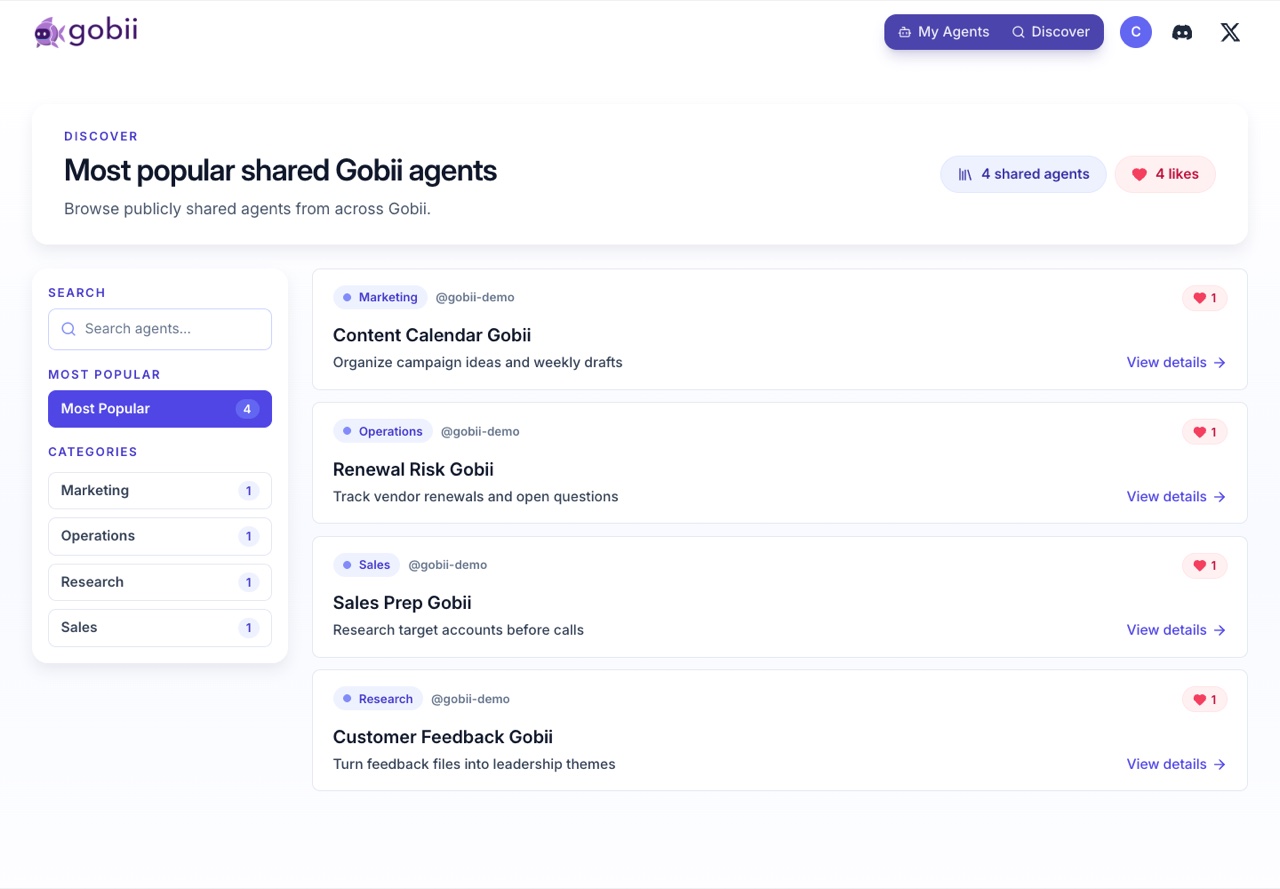
You can create a Gobii from your own description, or start from the Template Library.
Use a template when the goal matches an existing pattern. The template gives you a starting charter, suggested tools, and a faster path to useful work. You can edit the Gobii after creating it.
3. Review the new Gobii
After creation, open the Gobii's chat and review:
- Name: the display name you and your team will use.
- Charter: the role and boundaries.
- Status: whether the Gobii is active or paused.
- Plan: any proposed steps or deliverables.
- Tools and apps: connected capabilities the Gobii can use.
- Channels: chat, email, SMS, contacts, or app channels.
- Files: attached or reusable workspace files.
- Daily credits: the soft limit for daily work.
If the Gobii starts with a plan, check whether the steps match your intent before adding more instructions.
4. Add context
Useful context makes the Gobii safer and more effective:
- Upload background files to the chat or filespace.
- Tell the Gobii which sources, apps, or systems matter.
- Connect only the apps or MCP servers it needs.
- Add allowed contacts only when communication is part of the job.
- Store credentials through Secrets And Credentials, not in chat.
5. Set approval boundaries
Tell the Gobii what should require approval. Good first-run language:
Ask me before sending external messages, contacting new people, changing another Gobii, spending heavily, or using credentials for a new destination.
Approvals can appear as pending requests in chat. Respond to them directly when you are ready.
6. Send the first work request
Give the Gobii one clear request. For example:
Use the uploaded customer feedback file to identify the five strongest themes. Create a concise summary and list the exact file sections you used.
Watch the timeline for:
- Acknowledgement or clarifying question.
- Plan or deliverable updates.
- File references.
- Tool activity.
- Pending requests.
- Final response or generated files.
7. Refine after the first result
Use feedback to shape future work:
- "Make the summaries shorter."
- "Use this table format next time."
- "Do not include external links unless they are essential."
- "Run this every Monday morning."
- "Pause this Gobii until I restart it."
The goal is not a perfect first prompt. The goal is a useful first Gobii with visible work, clear boundaries, and enough context to improve over time.
Next steps
- Learn the workspace: Chat And Timeline
- Understand plans: Planning And Deliverables
- Add integrations: Tools And Apps
- Invite a team: Organizations And Seats