Files And Workspaces
Each Gobii can have a filespace for attachments, reference material, generated outputs, and reusable working files.
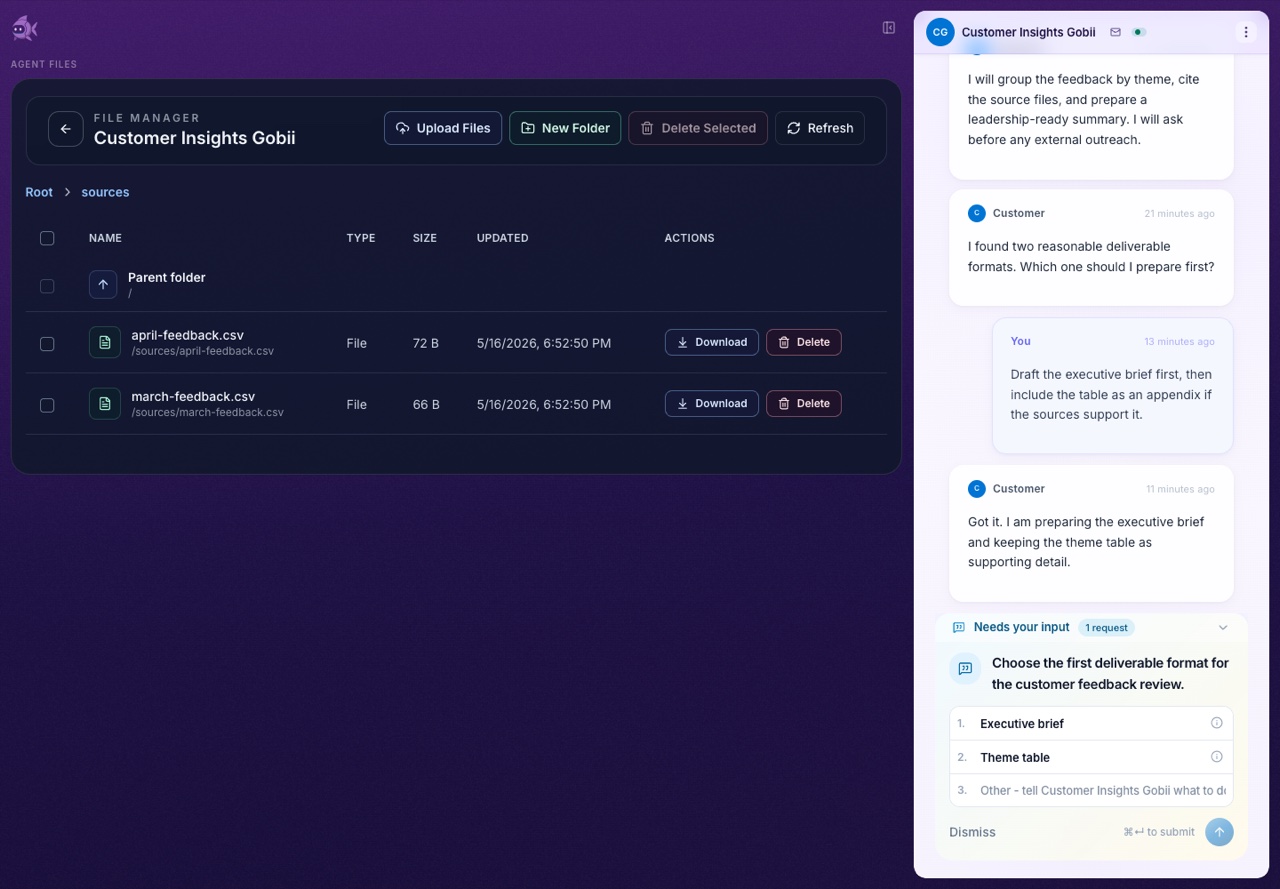
Ways files enter a Gobii workspace
- Chat attachments.
- Email attachments.
- SMS/MMS attachments.
- Files uploaded through the file manager.
- Files created by Gobii during work.
- Files handed off from a linked Gobii when peer messaging includes attachments.
- Files referenced through Remote MCP or other supported integrations.
Chat attachments versus workspace files
Use chat attachments for files needed by the current request.
Use the filespace when:
- The file should be reused later.
- The Gobii should reference it by name or path.
- Multiple collaborators need access.
- A generated output should remain available after the conversation scrolls.
Manage files
Open the file manager:
- Gobii Cloud:
https://gobii.ai/console/agents/<agent_id>/files/ - Self-hosted:
http://localhost:8000/console/agents/<agent_id>/files/
From there you can upload, create folders, move files, download files, and delete files.
Good file practices
- Use descriptive names.
- Organize recurring workflows into folders.
- Remove stale files that could confuse the Gobii.
- Tell the Gobii which file to use when multiple files are similar.
- Avoid storing credentials or private keys as ordinary files.
Generated files
When Gobii creates a file, review it before sharing externally. For reports, exports, PDFs, charts, or images, ask Gobii to include a concise summary in the timeline so collaborators know what changed.
Peer file handoffs
When two Gobiis are connected with Peer Linking, one Gobii can hand off an artifact to the other through a peer message. Ask the sending Gobii to attach or reference the specific file, and tell the receiving Gobii what to do with it.
Developer and MCP file use
The Agent API and Remote MCP surfaces expose file-related behavior in different ways. Developers should see Agent API and Remote MCP.