Review Before Send
Review Before Send gives you a final human checkpoint for outbound email. When a Gobii prepares an email covered by its policy, the entire message waits in Outbox. No recipient receives it until an authorized person approves the exact version.
The review includes the sender, every To, CC, and BCC recipient, the subject, message body, and attachments. If any recipient is external and the policy requires review, the whole email waits.
Review Before Send applies to external email. Gobii treats your verified account addresses—and, in an organization workspace, verified addresses belonging to active organization members—as internal.
Contact Access And Email Review Are Separate
Review Before Send controls what is sent. Contact access controls who a Gobii may contact.
Approving an Outbox email does not authorize a new or blocked contact. Before the message can be approved, each external recipient must already have outbound contact access or the Gobii must be configured to add email contacts automatically. This separation prevents a message approval from silently creating broader, ongoing contact permission.
See Contact Access And Allowlists for contact permissions.
Choose An Agent's Email Policy
To configure one Gobii:
- Open the Gobii and click the settings gear.
- Click More Settings.
- Open Contacts & Access.
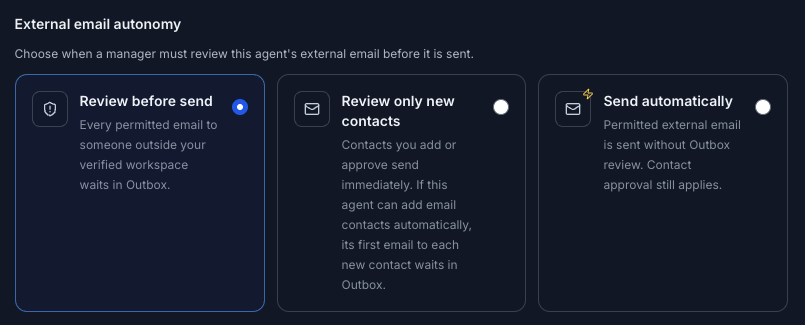
- Under External email autonomy, choose a policy.
- Click Save Changes.
| Policy | Behavior |
|---|---|
| Review before send | Every permitted email with at least one external recipient waits in Outbox. |
| Review only new contacts | Email to known, permitted contacts sends immediately. If the Gobii can add email contacts automatically, its first email to each newly added contact waits in Outbox. |
| Send automatically | Permitted external email is sent without Outbox review. Contact access rules still apply. |
For a new Gobii or a workflow that sends consequential email, start with Review before send. Move to a less restrictive policy only after you are comfortable with the Gobii's recipients, content, and instructions.
Set A Workspace Default
Open Outbox, expand Review Before Send policy, and choose Default for new agents. Changing this default affects Gobiis created later. Click Apply default to existing agents if you also want to replace the individual policy on every existing Gobii in the current workspace.
Organization managers can also set an Organization minimum. Individual Gobiis may use the minimum or a stricter policy, but cannot select a less restrictive one.
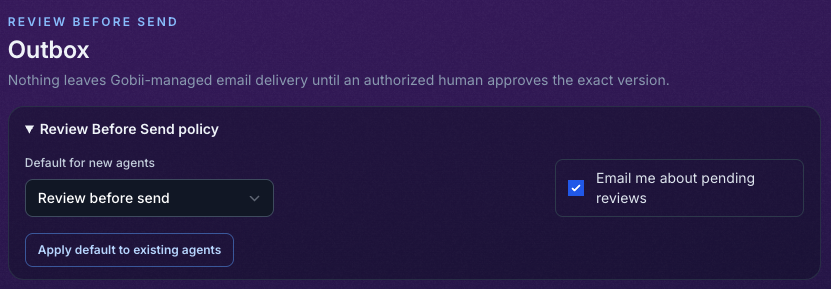
Turn on Email me about pending reviews if you want email notifications. Gobii notifies you when a new pending-review cycle begins and sends daily reminders while the workspace still has email waiting for review.
Review From Chat
When a Gobii prepares an email that needs approval, its chat shows a pending approval card. The recipient has not received the message at this point.
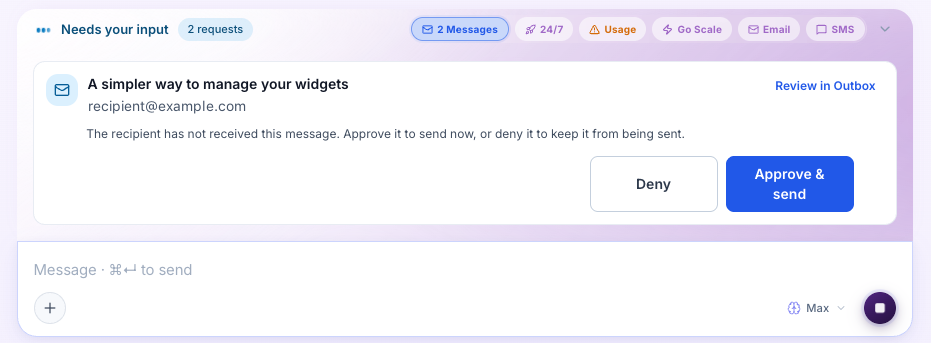
From the card, you can:
- Click Approve & send to approve the exact version shown in the timeline and queue it for delivery.
- Click Deny to discard the email without sending it.
- Click Review in Outbox to inspect all recipients, attachments, warnings, and the rendered message.
Approval queues the email for delivery; it does not guarantee that the email provider has delivered it. Delivery failures appear in Outbox and in the Gobii's timeline.
Use The Outbox
Open Outbox from the main navigation or from Review in Outbox on a chat approval card.
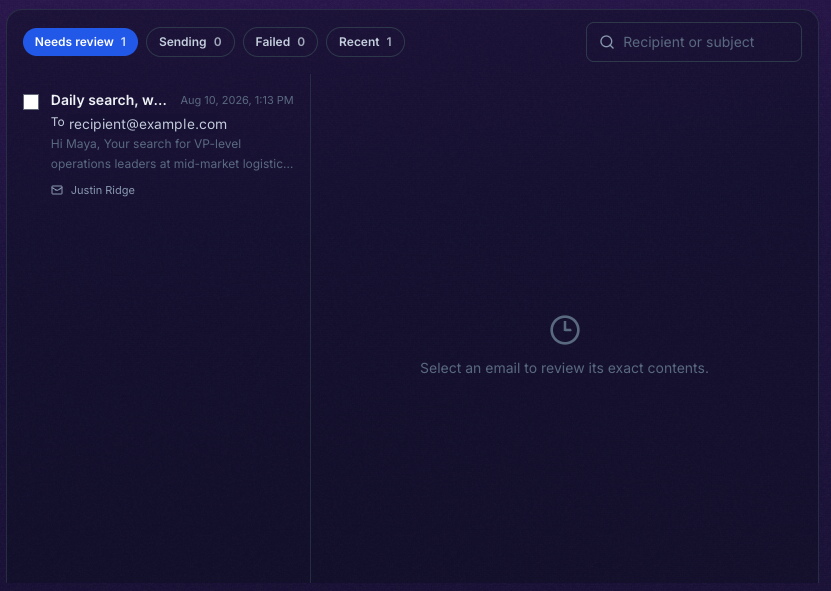
The tabs separate email by state:
- Needs review: pending email that has not been sent.
- Sending: approved email queued for or currently in delivery.
- Failed: approved email that encountered a delivery error.
- Recent: sent, discarded, and expired email.
Search by recipient or subject. Select multiple messages in Needs review to discard them together.
Select an email to inspect its exact contents. Check the From, To, CC, and BCC fields, subject, body, attachments, and any warning badges before deciding.
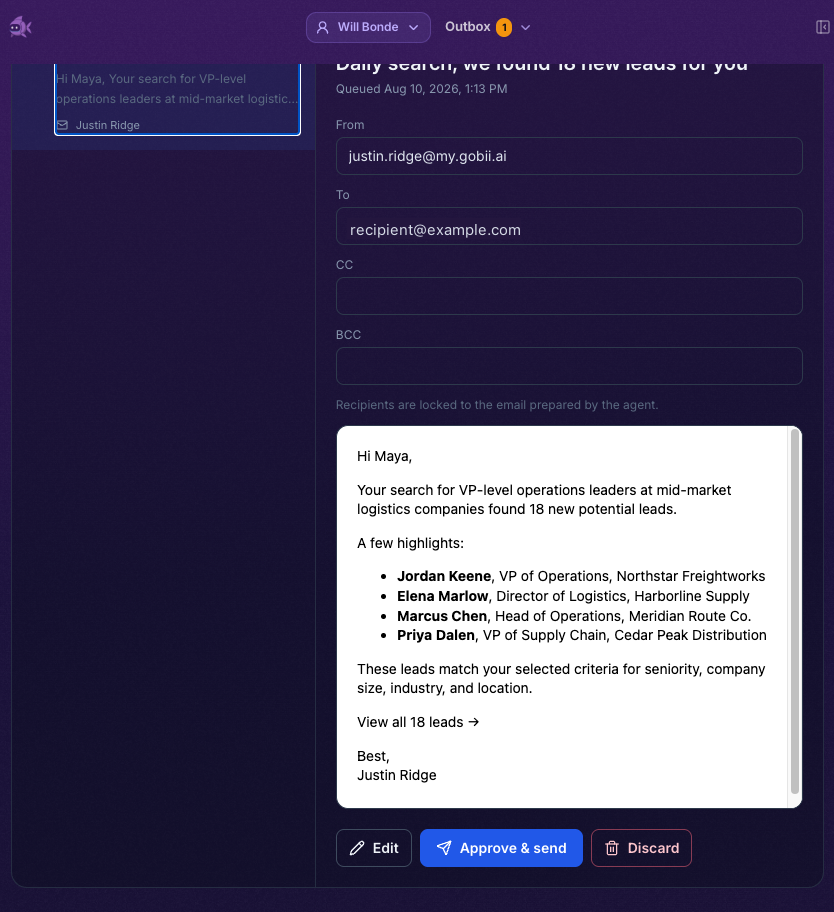
Outbox may flag:
- New contact: at least one external recipient is not currently an allowed contact.
- External CC or External BCC: a copied recipient is outside the verified workspace.
- Stale: the message has waited at least 24 hours. Recheck its facts and timing.
- Conversation changed: newer activity appeared in the email thread after this draft was queued.
If the conversation changed, review the newer activity and confirm I reviewed the newer conversation activity and still want to send this version before approving.
Edit Before Sending
Click Edit to change the subject, message body, or attachments selected from the Gobii's files. Click Save changes to create a new review version, inspect the updated preview, and then approve it.
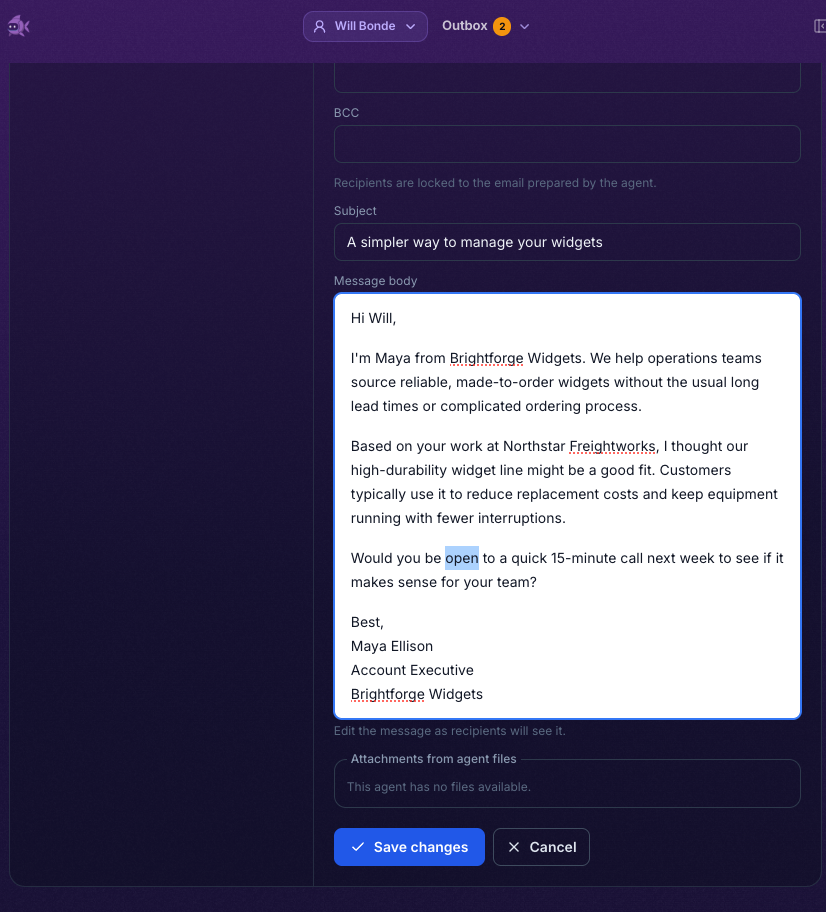
To, CC, and BCC recipients are locked. If a recipient is wrong, discard the email and ask the Gobii to prepare a new one. This keeps recipient changes from being hidden inside an otherwise familiar draft.
Attachments are copied into the review version when the email is queued or saved. Gobii checks those snapshots again before delivery so an attachment cannot change after approval.
Approve, Discard, Or Retry
Approve & send approves the exact saved version and queues it for delivery. Gobii rechecks the sender, recipient access, reply target, content, and attachments before sending.
Discard closes the review without sending the email. Pending emails also expire automatically after seven days; expired email cannot be approved later.
If an approved email fails during delivery, open Failed and click Retry unchanged email. Retry is available only when Gobii can safely resend the same approved version. If the content must change—or Outbox says the failure cannot be retried—ask the Gobii to prepare a new email.
Review activity is recorded in the Gobii's timeline, including edits, approval, discard, expiry, delivery failure, and retry.

Who Can Review
In a personal workspace, the owner can review its Outbox. In an organization workspace, authorized organization managers can review email across the workspace. Being a collaborator on one Gobii does not by itself grant access to the workspace Outbox.
Before approving another Gobii's email, confirm that you are in the intended personal or organization workspace.
Troubleshooting
I do not see Outbox or the external email autonomy options.
Review Before Send may not be enabled for your deployment. Ask your Gobii administrator about availability.
The Gobii asked for contact permission instead of putting the email in Outbox.
The recipient is not authorized for outbound contact. Approve the contact request first, or enable automatic email contact authorization if that is appropriate. Email review never grants contact access.
An email did not appear in Needs review.
Check the Gobii's External email autonomy setting. Internal email does not wait in Outbox. Email to a known contact may also send immediately under Review only new contacts.
Outbox says the version changed.
Another reviewer or edit created a newer version. Refresh the item and review the current preview before acting.
Approve & send is disabled because the conversation changed.
Read the newer thread activity, then select the acknowledgement below the preview. If the draft is no longer appropriate, edit or discard it.
The email can no longer be approved.
It may have expired, been discarded, or already been approved. Approval may also stop if the Gobii is paused, its sender is disabled, email verification is incomplete, contact access changed, or an attachment is no longer valid.
A failed email has no retry button.
Some integrity and authorization failures require a newly prepared email. Confirm the sender and contact access, then ask the Gobii to create a new message.