HubSpot
HubSpot support lets a Gobii work with CRM data directly for sales, marketing, customer operations, and reporting workflows. Use it when you want a Gobii to find records, inspect account context, update contacts or deals, review properties, or help with CRM cleanup and handoff tasks.
HubSpot connects as a native workspace app through OAuth. You authorize HubSpot, return to Gobii, and the HubSpot row shows as connected. After that, ask the Gobii for the HubSpot task you want.
The examples below focus on common CRM workflows, but the connection uses HubSpot's API rather than a narrow form-based integration. That means a Gobii can help across the broader HubSpot API surface your account, plan, scopes, and permissions allow. If you are not sure whether a workflow is supported, ask the Gobii for the HubSpot action you want and it will try the right API path or tell you what access is missing.
When To Use It
Use HubSpot when you want a Gobii to:
- Search, read, create, or update HubSpot contacts.
- Search, read, create, or update HubSpot companies.
- Search, read, create, or update HubSpot deals.
- Inspect owners, pipelines, stages, record properties, schemas, and CRM metadata.
- Review associations between contacts, companies, deals, and other CRM records when permissions allow.
- Prepare CRM cleanup, enrichment, routing, reporting, lifecycle-stage, or sales handoff work.
- Use other HubSpot API endpoints that are available to the connected account and granted OAuth scopes.
If you only need general web research or a one-off summary from pasted data, HubSpot may be unnecessary. Use HubSpot when the workflow depends on live CRM records or should update your HubSpot workspace.
Connect HubSpot
You can start from chat or go straight to integrations. If you ask a Gobii to connect HubSpot before access is available, it can point you to the integrations page. To open integrations yourself, click Settings in the bottom-left navigation, then choose Integrations & MCP.
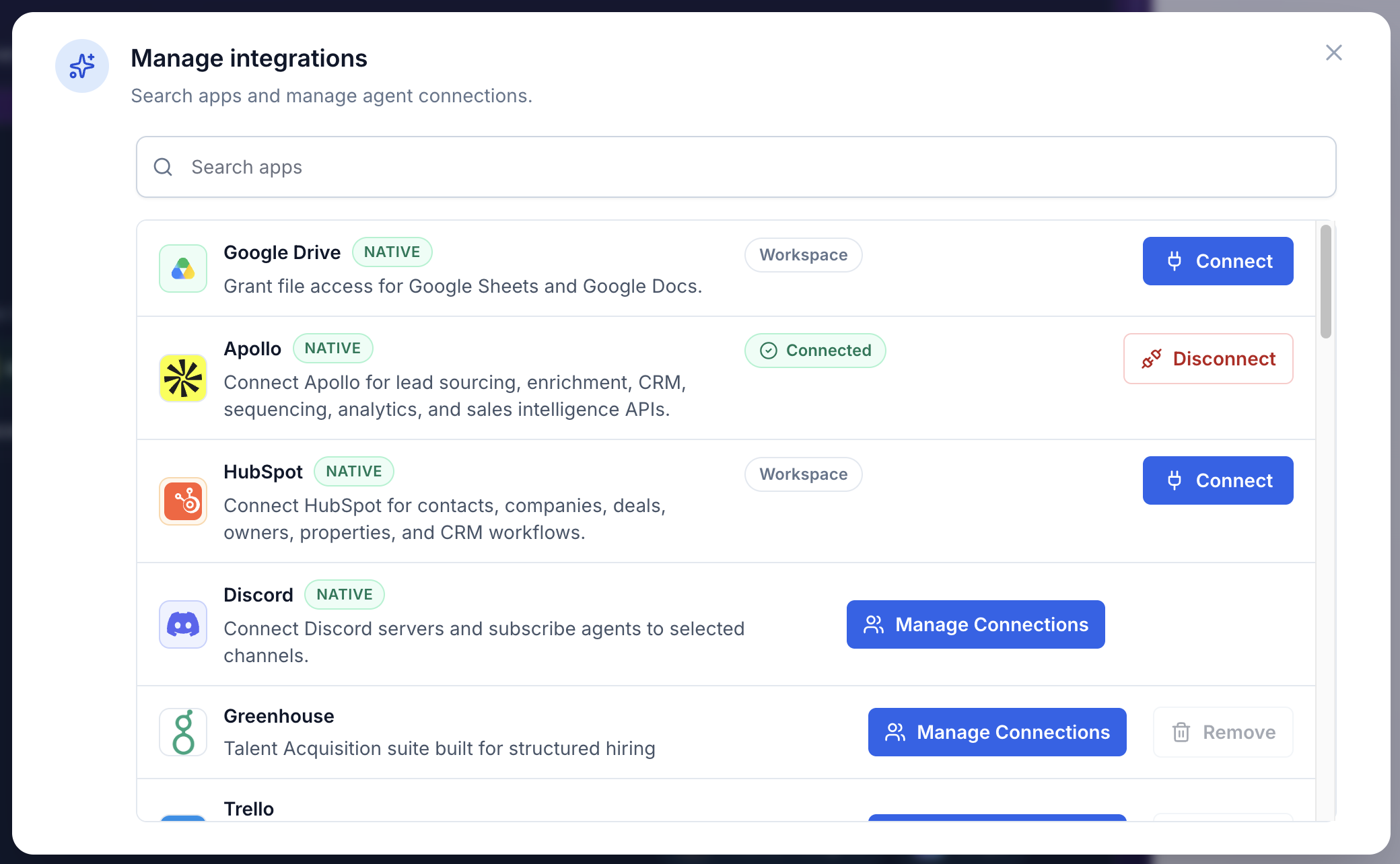
Open Add Apps, find HubSpot, and click Connect.
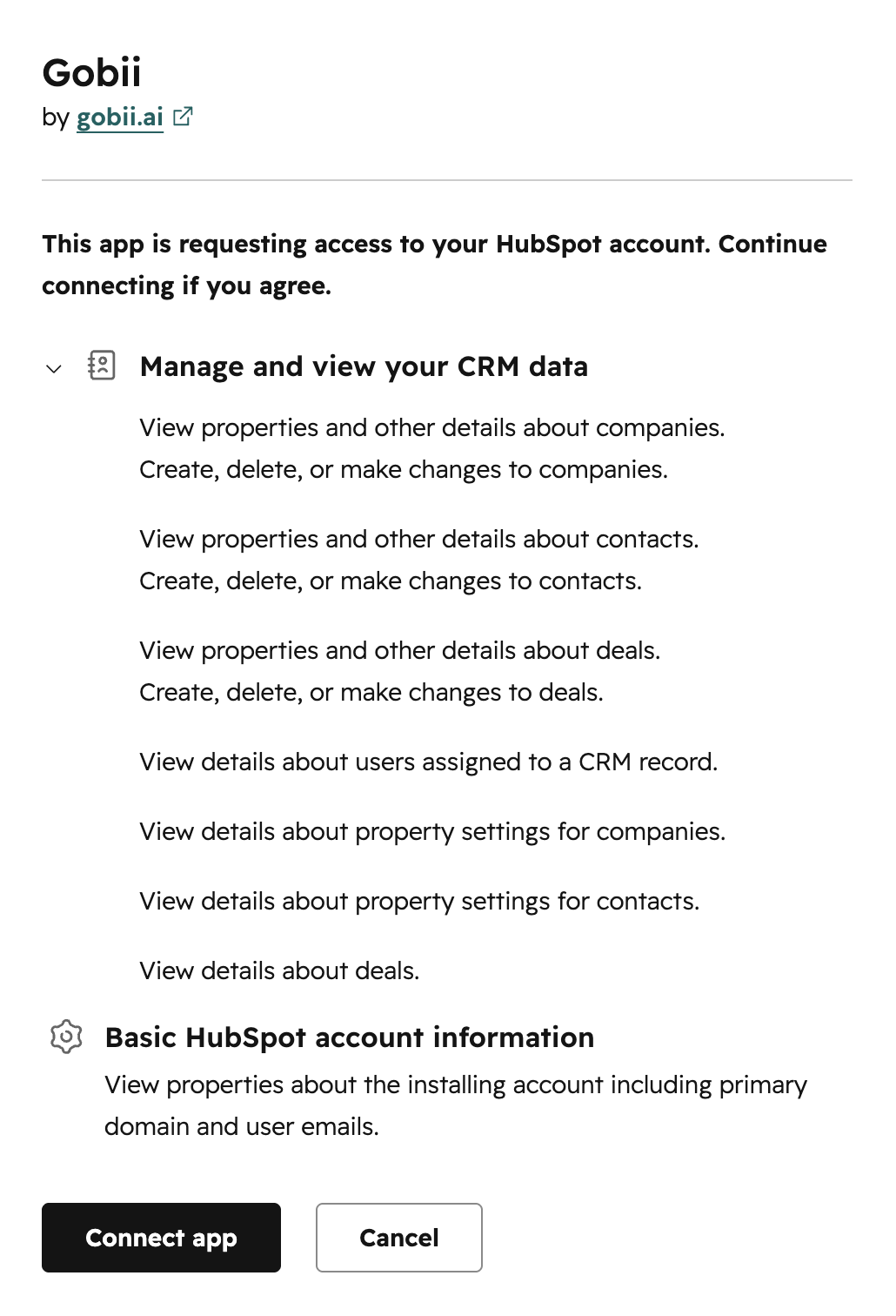
HubSpot will open an authorization screen. Review the requested access, then click Connect app to approve the connection.
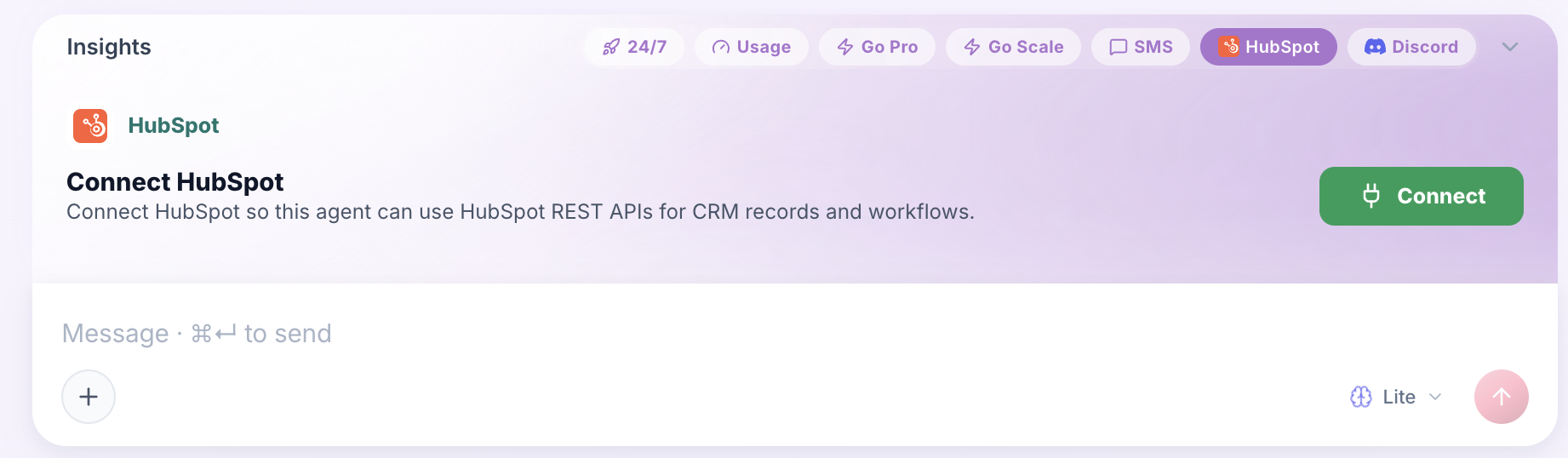
A Gobii can also show a HubSpot connection card when a workflow needs HubSpot access. Click Connect on the card to start the same OAuth flow.
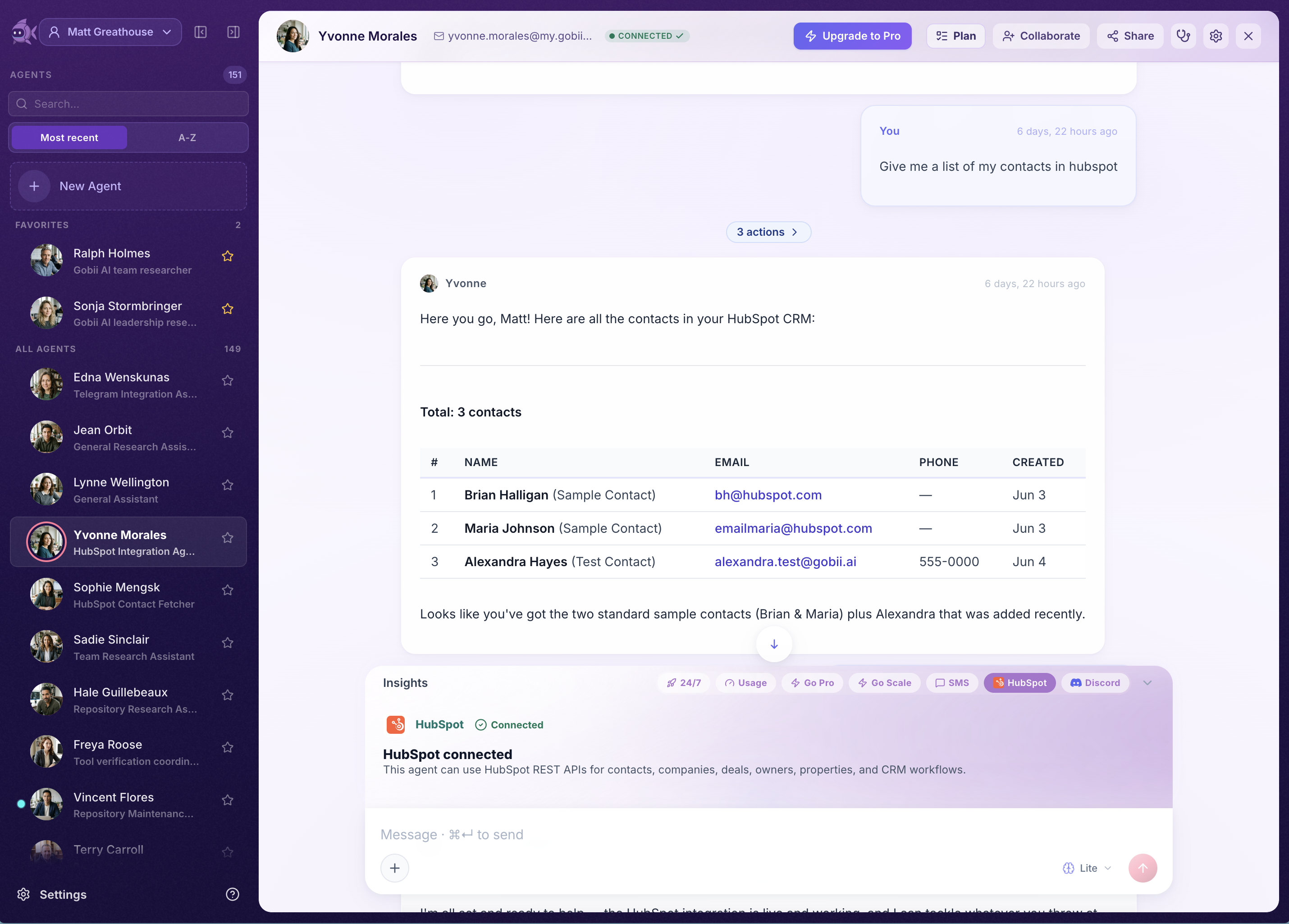
After authorization, return to Gobii. HubSpot should show as connected, and the Gobii can use HubSpot REST APIs for CRM records and workflows.
Then:
- Open the Gobii that should use HubSpot.
- Ask it to connect HubSpot, follow its integrations link, or open Settings -> Integrations & MCP directly.
- Click Add Apps.
- Find HubSpot and click Connect.
- Review the HubSpot authorization screen and click Connect app.
- Confirm that HubSpot shows Connected in Gobii.
- Return to chat and send a small test request, such as:
Give me a list of my contacts in HubSpot.
Give A Good HubSpot Request
HubSpot works best when you name the records, properties, filters, and write boundaries the Gobii should use.
For CRM search or reporting, include:
- The object type, such as contacts, companies, deals, tickets, or another CRM object.
- The filters, stages, owners, dates, domains, record IDs, or lifecycle values that matter.
- The exact properties you want returned.
- How many records you want.
- Whether associated records should be included.
- Whether the Gobii should only report results or also propose updates.
Examples:
Find all contacts at
acme.com, return name, email, lifecycle stage, owner, last activity date, and associated company. Do not update any records.
Search HubSpot for deals in the
Contract Sentstage with close dates in the next 30 days. Group them by owner and flag any missing amount or next-step property.
Review companies with more than 500 employees where industry is blank. Show the proposed industry updates and wait for approval before writing.
Find contacts associated with the deal
Enterprise Renewal - Northwind, summarize recent CRM context, and tell me which properties are missing.
For writes, be explicit:
Update these five contacts to lifecycle stage
Sales Qualified Leadonly if their current stage isMarketing Qualified Lead. Show me the exact records first and wait for my approval.
Create a follow-up deal for Acme with amount
25000, close date2026-07-31, and owner Jane Lee. Ask me to confirm the pipeline and stage before creating it.
Read Versus Write Workflows
HubSpot read workflows include CRM search, record inspection, association lookup, owner lookup, property review, pipeline checks, and reporting-style summaries. These are good first steps when you are auditing CRM data or preparing a sales handoff.
HubSpot write workflows can create or update records in your workspace. Treat writes more carefully:
- Ask for a preview before creating or updating records.
- Require approval before changing lifecycle stages, deal stages, owners, amounts, close dates, or custom properties.
- Include dedupe instructions when creating contacts, companies, or deals.
- Ask the Gobii to summarize changed records after a write.
- Keep bulk updates narrow enough to review.
Example:
Search HubSpot for contacts at these company domains, show the records you found, and propose any lifecycle-stage updates. Do not update HubSpot until I approve the exact list.
Safety Boundaries
HubSpot can contain sensitive customer, prospect, revenue, and operational data. Keep the Gobii's role and instructions specific.
- Connect HubSpot only when the workflow needs CRM data.
- Review OAuth access before authorizing.
- Give precise filters so the Gobii does not over-collect broad CRM exports.
- Require approval before outreach, bulk updates, lifecycle-stage changes, deal-stage changes, owner changes, deletion, or record creation.
- Follow your team's privacy, sales operations, and customer-data rules.
- Disconnect HubSpot if the workspace no longer needs it.
Troubleshooting
HubSpot does not show as connected. Return to Settings -> Integrations & MCP, open Add Apps, and connect HubSpot again. Make sure the HubSpot row shows Connected.
The Gobii says HubSpot is not connected. Confirm the workspace integration is connected, then ask the Gobii to retry the HubSpot request. If the connection expired or scopes changed, reconnect HubSpot.
The Gobii says a scope or permission is missing. Reconnect HubSpot and review the requested access. HubSpot API access depends on the connected account, granted OAuth scopes, and the account's available HubSpot products.
Search results are too broad or irrelevant. Add stricter object types, owners, dates, pipeline stages, lifecycle stages, domains, property filters, or associations. Ask the Gobii to show the filters it used.
Search results are empty. Loosen one filter at a time. For example, broaden the date range, include archived records only if appropriate, remove a narrow owner filter, or search by record ID or domain.
A property is missing from results. Ask the Gobii to inspect HubSpot properties for that object type, then retry with the exact internal property name.
A write failed. Ask the Gobii to inspect the HubSpot response, confirm required fields, property names, record IDs, associations, and pipeline or stage values, and retry only after you approve the corrected write.