Discord
Discord support lets a Gobii join the channels where your team already talks. Use it when a Gobii should monitor a server channel, respond in context, work with shared files or images, or keep team workflows moving without everyone switching back to the Gobii web app.
Gobii connects through the native Gobii Discord bot. Each authorization adds exactly one server, then you choose which channels should wake this Gobii. Gobii does not import the other servers in your Discord account.
When To Use It
Use Discord when you want a Gobii to:
- Receive messages from selected Discord channels.
- Reply back into subscribed channels.
- Follow team context where work is already happening.
- Work with files, images, screenshots, and links shared in Discord.
- Keep a Discord conversation connected to the Gobii timeline.
- Coordinate across Discord, web chat, email, and other enabled channels.
If the work is private, one-off, or not tied to team chat, web chat may be simpler. Use Discord when the Gobii should participate in an existing server workflow.
Connect Discord
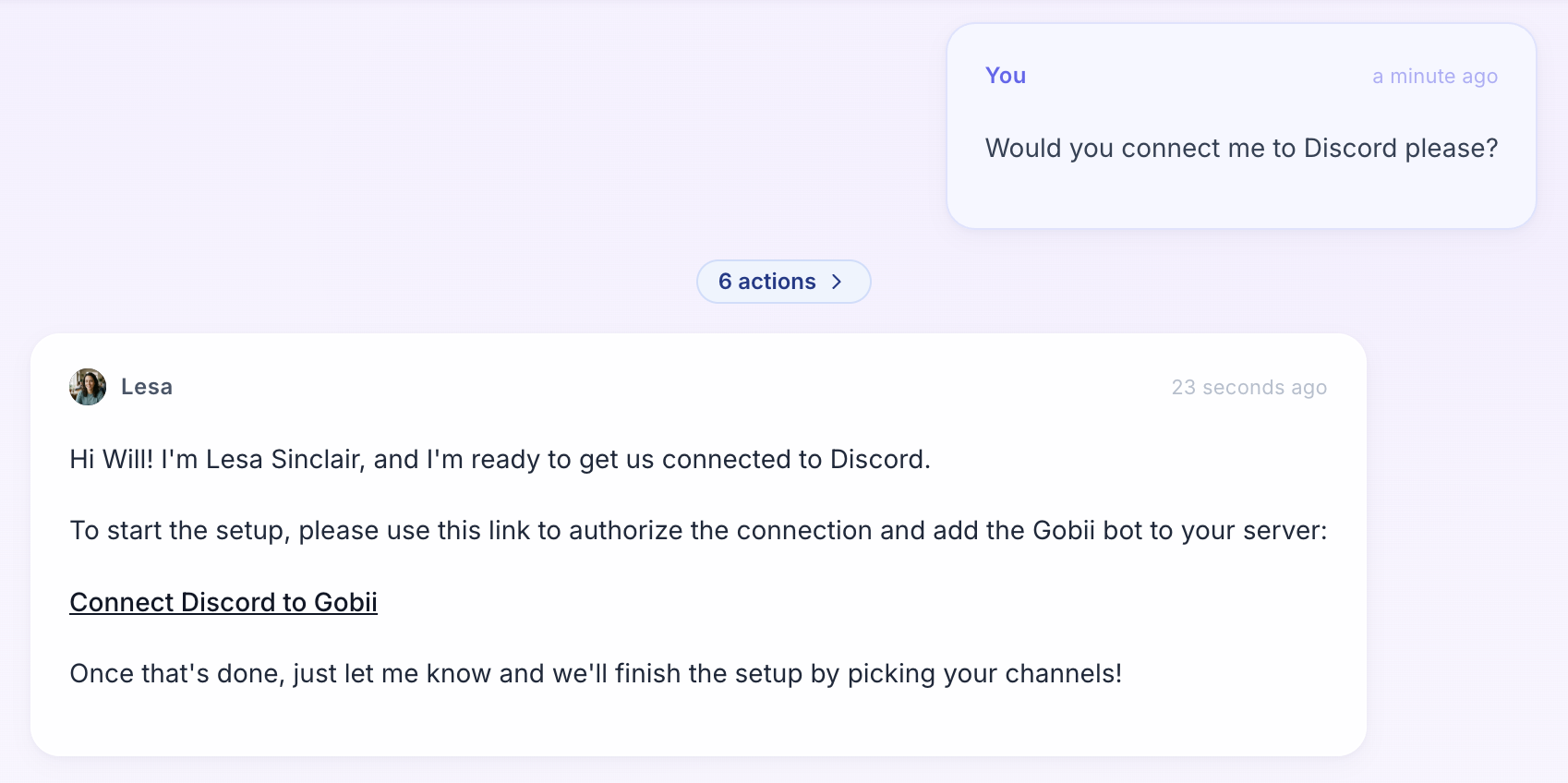
You can start from chat. Ask the Gobii to connect to Discord, and it will provide the setup link.
Discord will ask you to authorize Gobii and choose the server where the bot should be added.
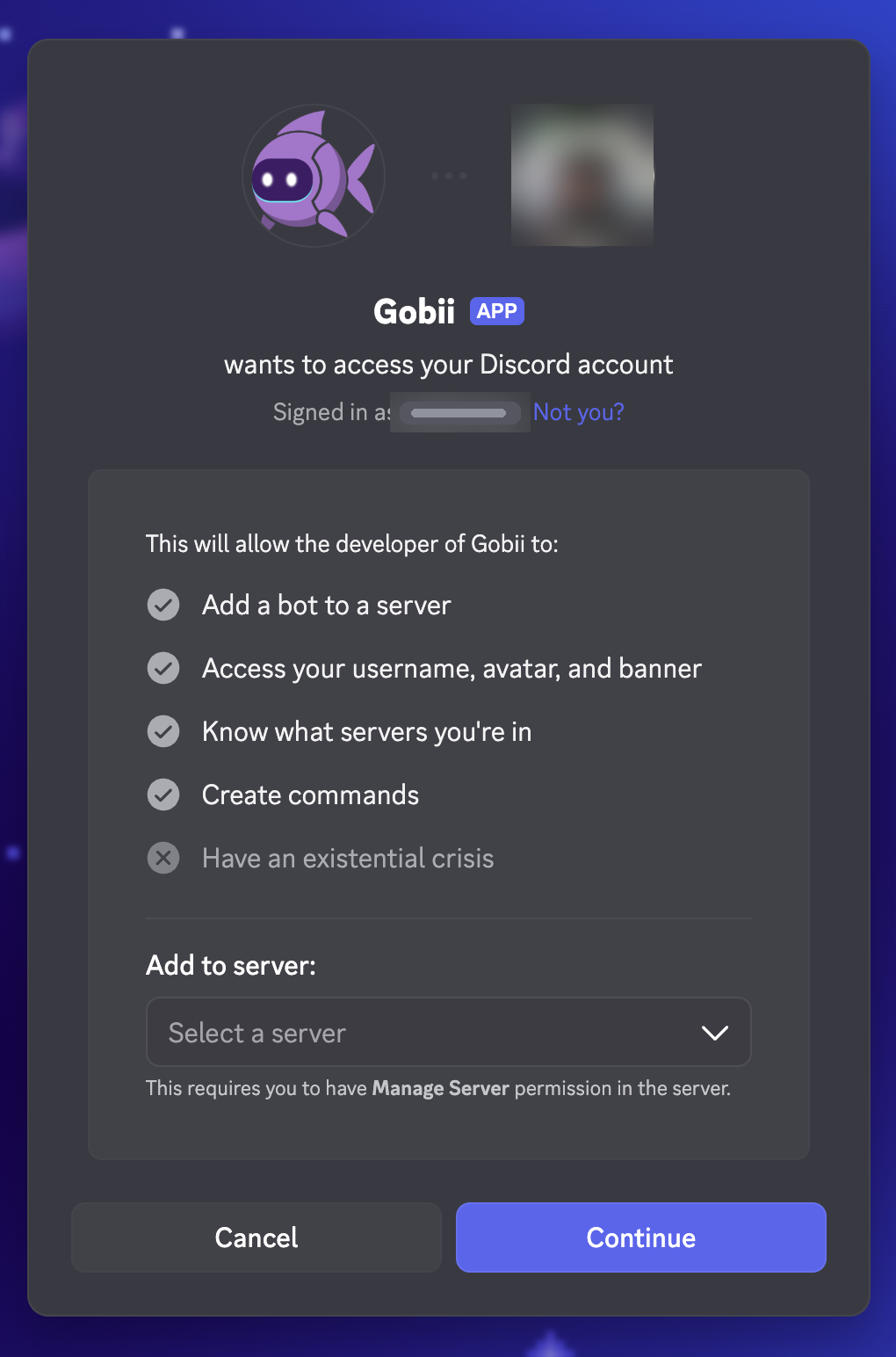
You need Manage Server permission in the Discord server you select. After the bot is added, Discord shows that Gobii joined the server.
To connect another server, use Add server and complete a separate authorization. Connected servers are shared within the current personal or organization context, but each Gobii has its own channel subscriptions.

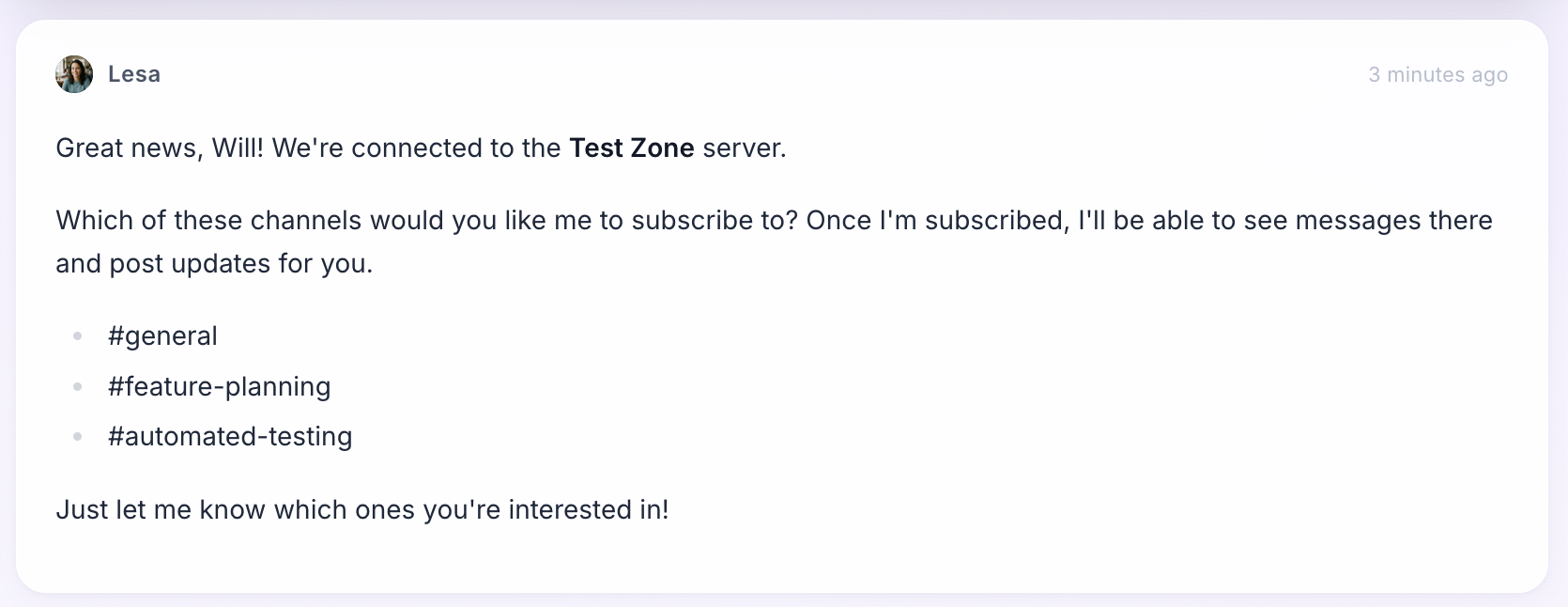
Return to Gobii after the bot joins the server. The Gobii can list available channels and ask which ones should be subscribed.
Then:
- Open the Gobii that should use Discord.
- Ask it to connect to Discord, or open the Discord setup flow from the integration controls when available.
- Open the Discord setup link.
- In Discord, choose the server where the Gobii bot should be added.
- Continue through the Discord authorization flow.
- Return to Gobii.
- Choose the server channels that should wake this Gobii. The Gobii may list available channels in chat, or you can choose them from the Discord configuration UI when available.
- Save the channel subscriptions.
- Send a small test message in a subscribed Discord channel.
Only selected channels should wake the Gobii. If a channel is not subscribed, do not assume the Gobii can see or respond to messages there.
Removing a server from Gobii disables every Gobii subscription in that server, removes Gobii-created webhooks, and uninstalls the Gobii bot from the server.
Choose Channels Carefully
Subscribed channels become inbound channels for the Gobii. Messages in those channels can wake the Gobii and become part of its working context.
Good channel choices:
- A project channel where the Gobii has a clear role.
- A support triage channel where the Gobii summarizes or routes issues.
- A research channel where files, links, and notes are collected.
- A QA or engineering channel where screenshots and bug context are shared.
Avoid subscribing broad or noisy channels unless the Gobii really needs them. If the channel contains sensitive conversations, make sure the Gobii's role, connected tools, and approval boundaries are appropriate.
Give A Good Discord Request
For Discord workflows, tell the Gobii:
- Which Discord channel to use.
- Whether it should listen, summarize, respond, or wait for direct instructions.
- What kinds of messages matter.
- Whether files, images, or links should be processed.
- What should require approval before posting or taking external action.
Examples:
Watch the
#support-triagechannel. When customers report login problems, summarize the thread and ask me before replying.
In
#bug-reports, look at screenshots and links people share. Draft a concise issue summary, but do not create tickets until I approve.
Post the weekly launch status summary in
#marketing-opsafter I approve the final draft.
Monitor
#research-dropboxfor links and files. At the end of the day, summarize anything relevant to the pricing project.
What Gobii Can Do In Discord
In subscribed channels, a Gobii can:
- Read incoming messages that wake it.
- Reply through the Gobii Discord bot.
- Use the Gobii's name and avatar when sending Discord messages.
- Work with available message context, files, images, and links.
- Attach files when replying, where supported.
Discord messages also appear in the Gobii timeline, so you can inspect what happened from the web app.
Safety Boundaries
Discord is a shared communication space. Keep the Gobii's channel access focused.
- Subscribe only the channels the Gobii needs.
- Give clear instructions about when to reply versus summarize silently.
- Require approval before public announcements, outreach, destructive changes, purchases, or account updates.
- Avoid giving broad tool access to a Gobii that is listening to a noisy public channel.
- Remove channel subscriptions when the workflow is finished.
Troubleshooting
I do not see my Discord server. Make sure you are signed into the right Discord account and that you have Manage Server permission for the server.
The Gobii bot joined, but I do not see channels in Gobii. Return to Gobii and retry channel selection. The bot may need permission to list channels in the selected server.
The Gobii does not respond in Discord. Check that the channel is subscribed for this Gobii. Then ask the Gobii in web chat to list or confirm its active Discord subscriptions.
The Gobii is responding too often. Narrow the subscribed channels, revise the Gobii's instructions, or tell it to summarize and wait for explicit requests before replying.
The wrong channel is connected. Open Discord configuration for the Gobii, remove the unwanted channel subscription, and save the correct channel.