Peer Linking
Peer links create a direct channel between two Gobiis. Once linked, the Gobiis can coordinate with each other instead of relying on you to copy updates, files, and next steps between chats.
Use peer links when a workflow works better as a small team: one Gobii researches, another writes, another reviews, another updates a tracker, or another prepares a final handoff. Linked Gobiis can communicate across the link to exchange information and keep the work moving.
What Peer Links Do
A peer link lets linked Gobiis:
- Send direct messages to each other.
- Coordinate work across separate roles.
- Hand off context, status updates, and next steps.
- Pass files or artifacts through peer messages when file attachments are available.
- Wake a linked Gobii when coordination is needed.
Peer links do not merge the two Gobiis. Each Gobii keeps its own identity, instructions, filespace, tools, apps, connected accounts, contacts, collaborators, budgets, and limits unless you configure those separately.
When To Use Peer Links
Peer links are useful when the same workflow has distinct responsibilities.
Examples:
- A market research Gobii gathers sources, then links to a writing Gobii that drafts a brief.
- A sourcing Gobii finds candidates, then links to a screening Gobii that reviews resumes.
- A support triage Gobii summarizes escalations, then links to a customer themes Gobii.
- A data cleanup Gobii prepares a spreadsheet, then links to a reporting Gobii that creates the summary.
- A reviewer Gobii checks another Gobii's output before anything is shared externally.
If one Gobii can do the whole job cleanly, keep it simple. Use peer links when splitting the work makes the workflow clearer, safer, or more repeatable.
Add A Peer Link
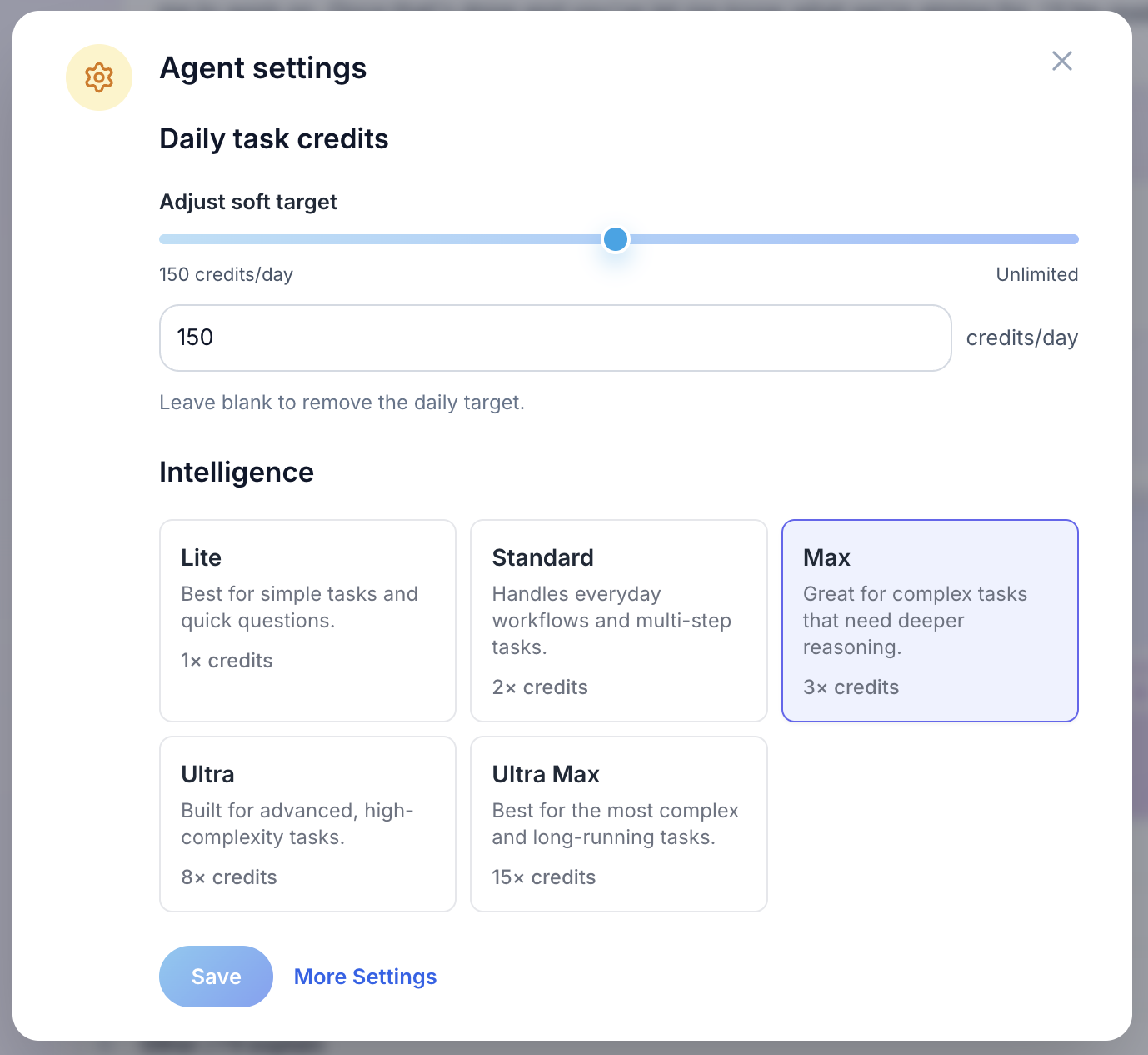
Open the Gobii you want to link from, then use the settings gear in the top toolbar.

In the quick settings panel, click More Settings.
On the full settings page, click Integrations.
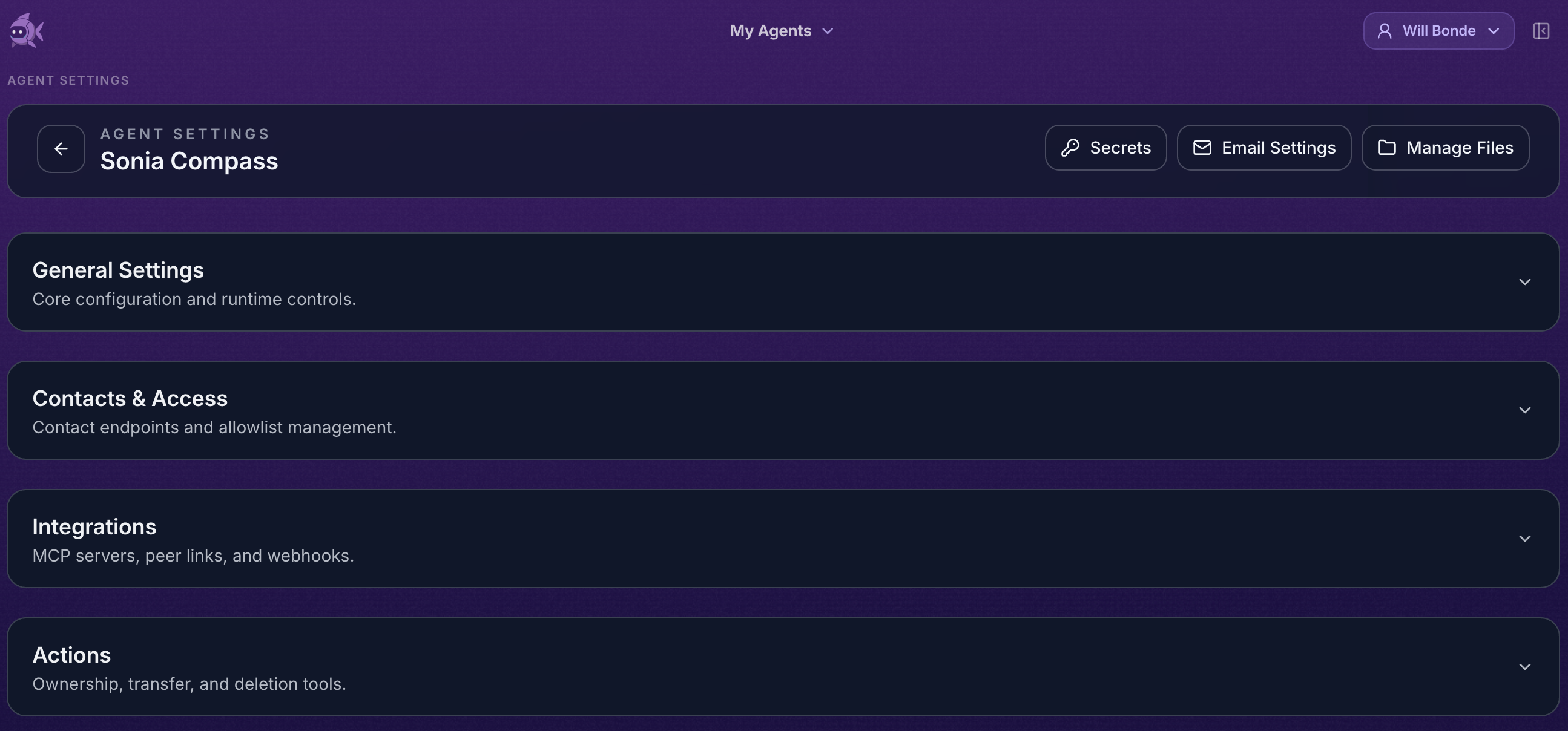
The peer-link controls appear in Agent Contacts (Peer Links).

Choose the Gobii to connect, then review the communication limits.
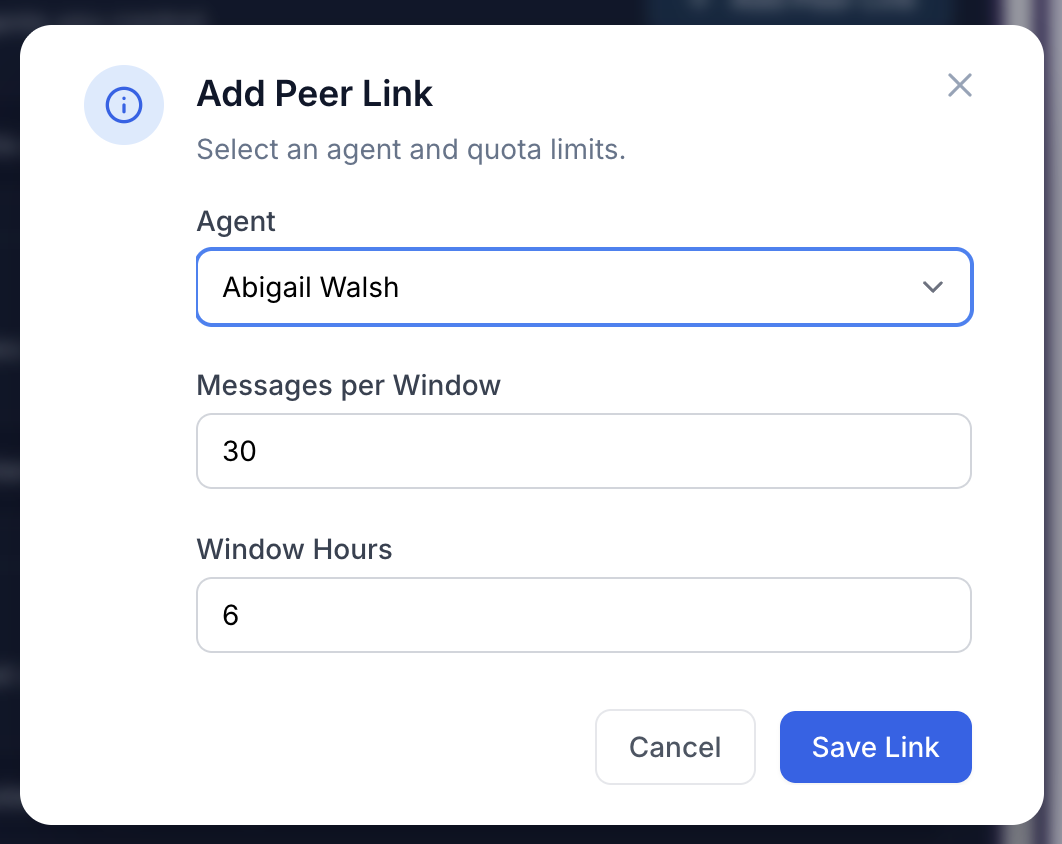
Then:
- Open the Integrations section.
- Find Agent Contacts (Peer Links).
- Click Add Peer Link.
- Choose the Gobii to connect.
- Review or adjust Messages per Window and Window Hours.
- Save the peer link.
If no agents are available in the picker, there may not be another eligible Gobii for this account or organization yet.
Use A Peer Link
After the link exists, ask one Gobii to work with the other by name and describe the handoff.
Examples:
Work with the Market Research Gobii to gather current competitor notes, then use that input to draft a concise launch brief.
Ask the Candidate Sourcing Gobii for its latest shortlist. Review the candidates and prepare interview notes for the top five.
Send the cleaned CSV to the Reporting Gobii and ask it to build the weekly summary from that file.
Good peer-link requests include:
- Which Gobii should be contacted.
- What information or artifact should be shared.
- Which Gobii owns the next step.
- Whether either Gobii should wait for approval before sending messages, editing files, or contacting people.
Link Through Meta Gobii
You can also ask Meta Gobii to connect Gobiis as part of setup or cleanup work.
Example:
Connect the account research Gobii to the call prep Gobii, then brief them on how to hand off target account notes.
Meta Gobii should show the proposed link and any briefing messages before making changes.
Message Quotas And Loops
Peer links include message-window limits. These limits help keep linked Gobiis from getting stuck in rapid back-and-forth loops.
When you create or edit a peer link, you may see settings such as Messages per Window and Window Hours. Keep the defaults unless you have a specific reason to allow more frequent coordination.
Remove A Peer Link
Removing a peer link stops future direct coordination between the two Gobiis. Historical peer messages remain in the relevant timelines, so you can still review what happened.
Use removal when:
- The workflow is finished.
- The agents no longer need to coordinate.
- You linked the wrong Gobii.
- You want to simplify a setup that became too noisy.
Troubleshooting
I do not see another Gobii in the Add Peer Link picker. The other Gobii may not be eligible for linking from this account or organization, or it may already be linked.
The linked Gobii did not receive the message. Ask the sending Gobii to confirm it used the peer message channel. Plain chat text does not deliver a message to another Gobii by itself.
The Gobiis are talking too much. Reduce the peer link quota, pause one Gobii, remove the link, or tell the active Gobii to summarize and stop after one handoff.
A file did not transfer. Ask the sending Gobii to attach or reference the specific file. Files do not automatically become shared just because two Gobiis are linked.