Google Sheets
Google Sheets support lets a Gobii work directly with spreadsheets instead of asking you to copy rows in and out of chat. Use it when a workflow needs structured data, recurring reports, CRM-style cleanup, lead lists, dashboards, or spreadsheet outputs your team can keep using.
Gobii connects through Google Drive. You authorize Google, choose the existing spreadsheet files this Gobii may access, then ask the Gobii to read, write, append, format, or chart those sheets. A Gobii can also create a new spreadsheet when you ask. It cannot browse your whole Drive or discover unselected files; existing files must be granted before the Gobii can find, read, or update them.
When to use it
Use Google Sheets when you want a Gobii to:
- Read worksheet names, tabs, ranges, cells, formulas, and row values.
- Search for one of your selected spreadsheets by name.
- Append new rows to a lead list, tracker, or report.
- Update known ranges or clean existing rows.
- Create a new spreadsheet from research or uploaded files.
- Format a sheet with headers, frozen rows, banding, column sizing, and charts.
- Keep task results flowing into a shared spreadsheet.
If you only need a one-time file output, a CSV in the Gobii filespace may be enough. Use Google Sheets when the result should live in Google Workspace or continue to be edited by your team.
Connect Google Drive
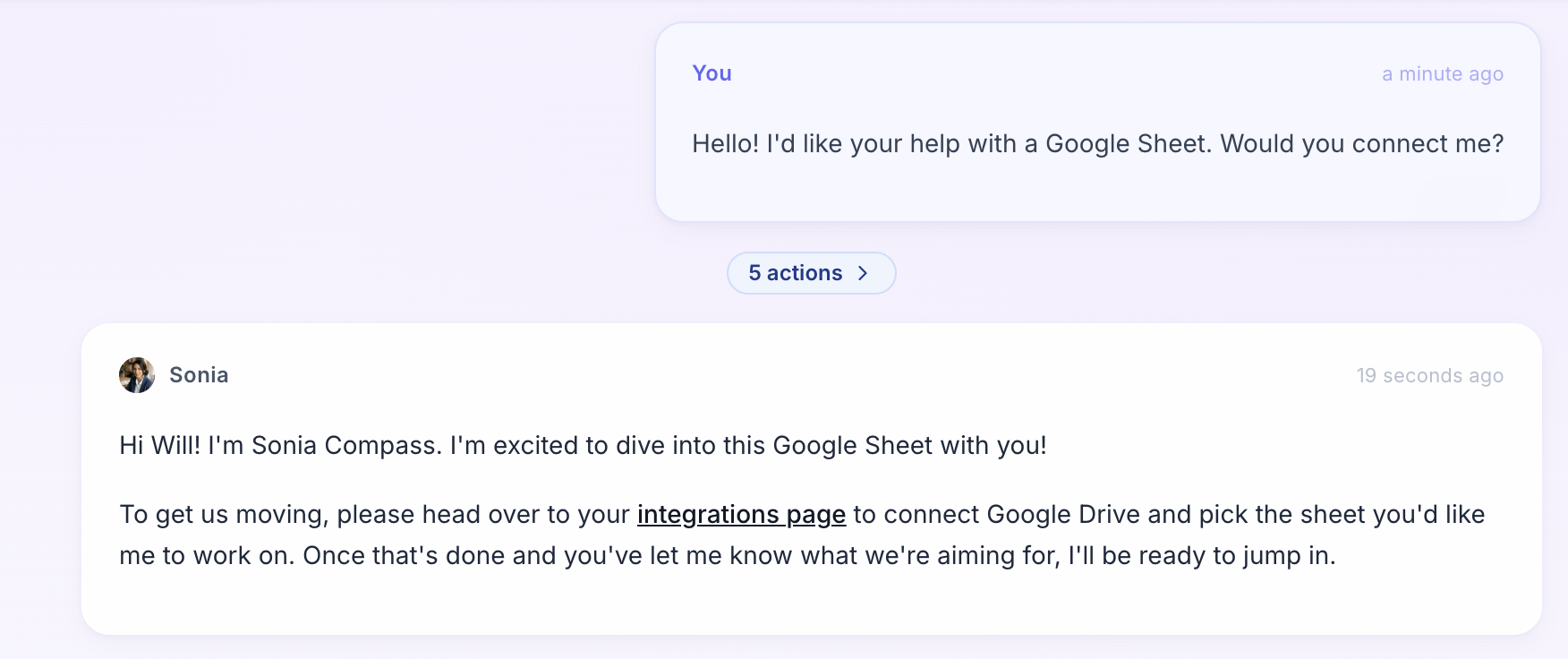
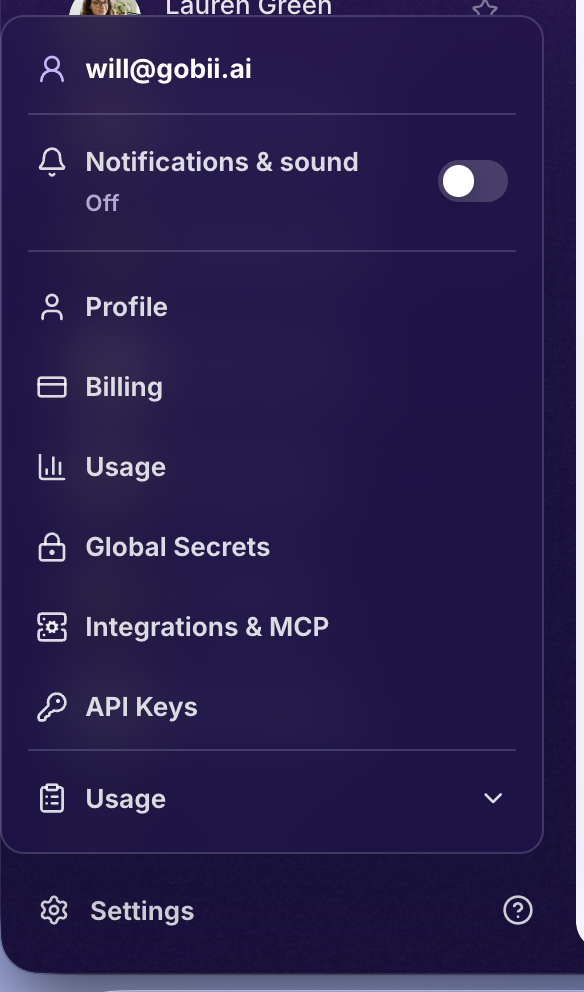
You can start from chat or go straight to integrations. If you ask a Gobii to help with a Google Sheet before access is connected, it can point you to the integrations page. To open integrations yourself, click Settings in the bottom-left navigation, then choose Integrations & MCP.
- Open the Gobii that should work with the spreadsheet.
- Ask for the Sheets task, follow the Gobii's integrations link, or open Settings → Integrations & MCP directly.
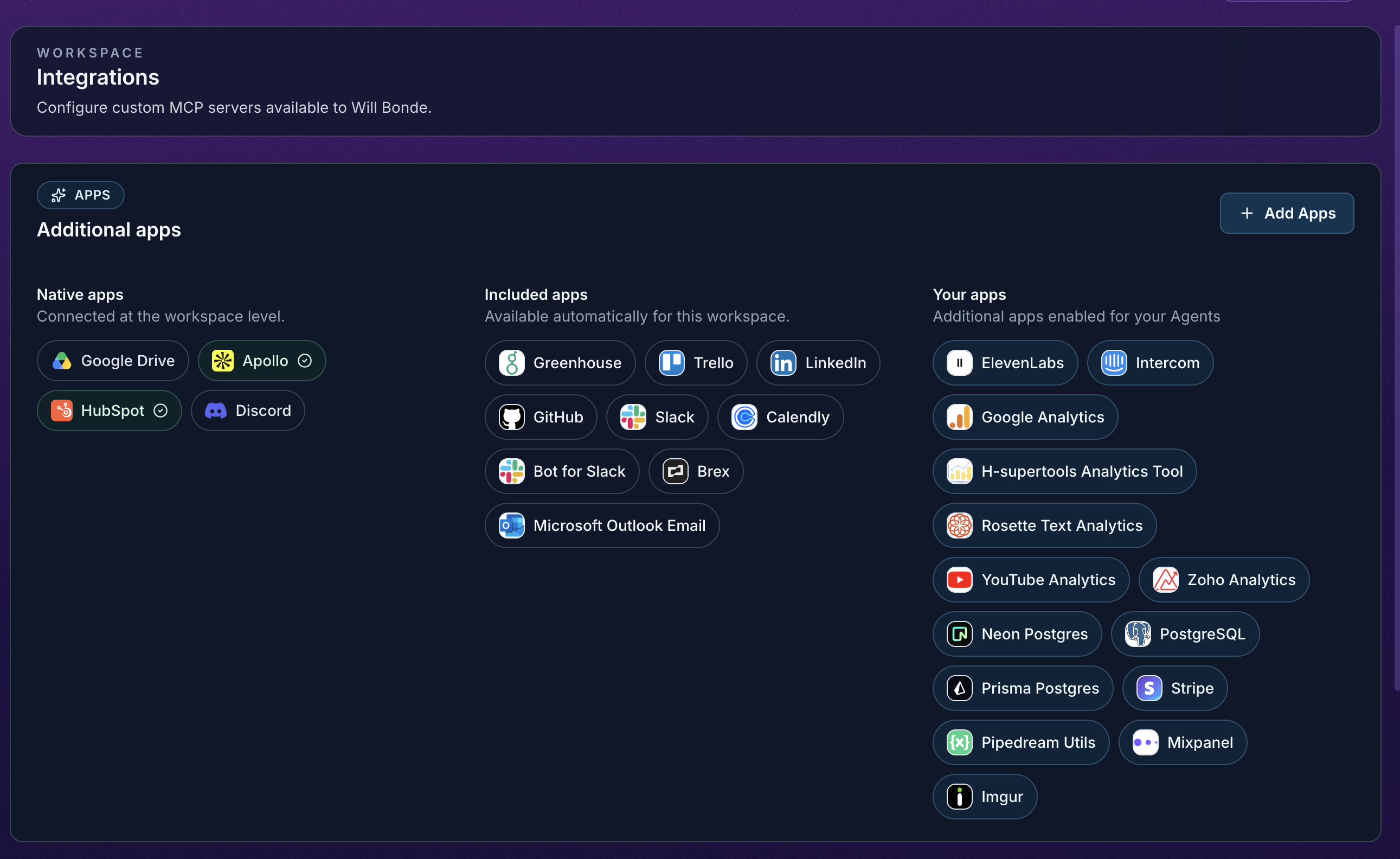
- Click Add Apps.
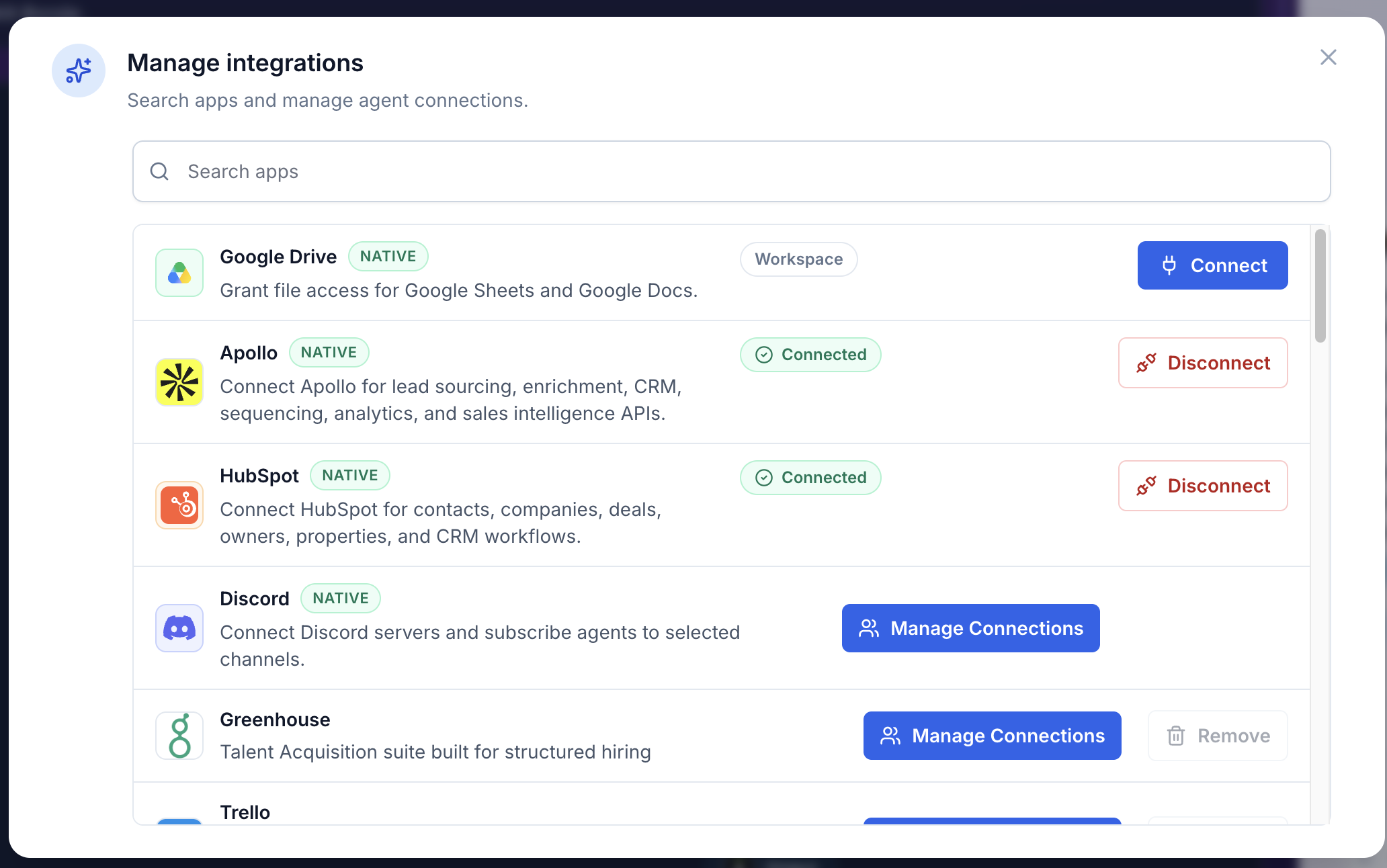
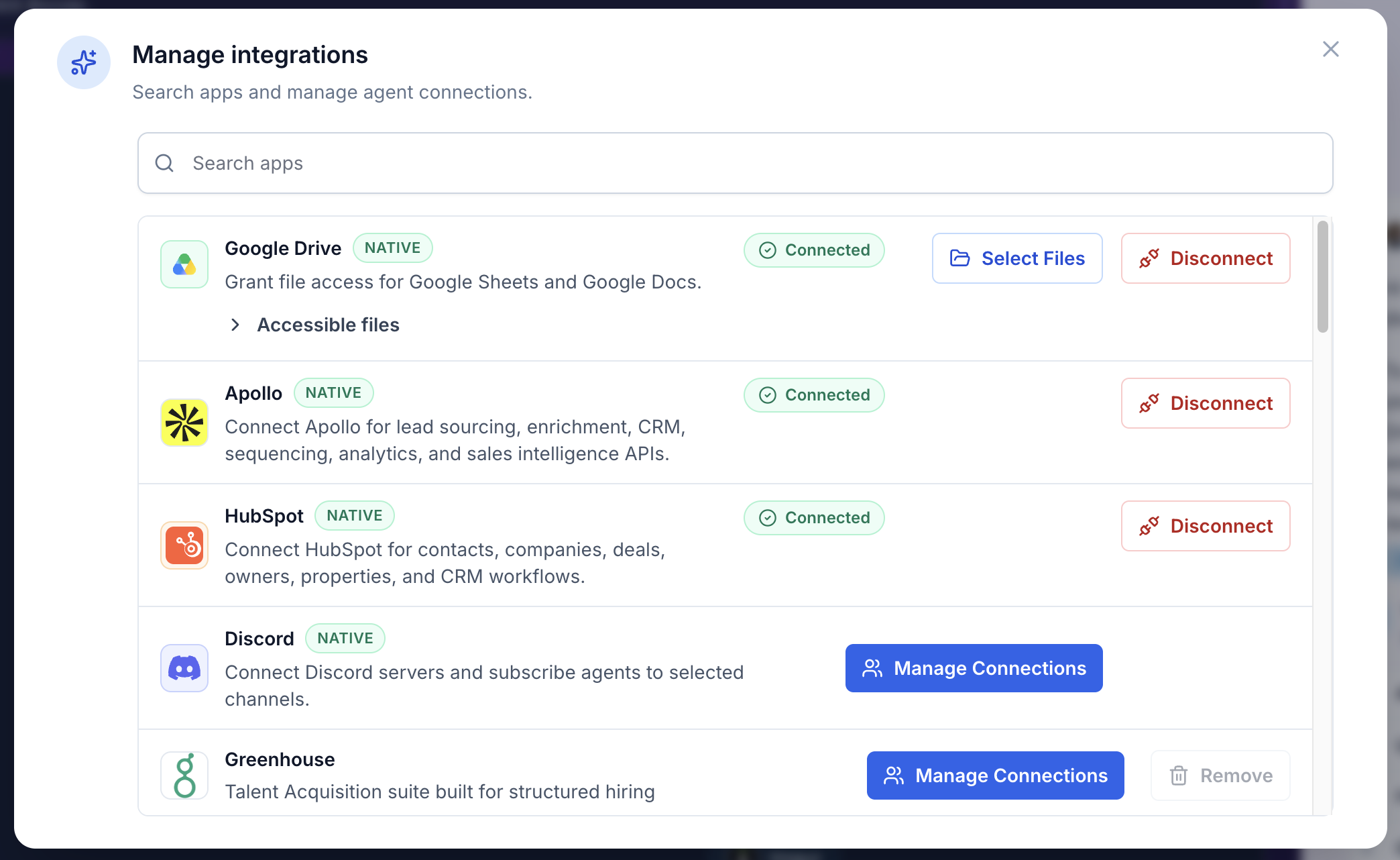
- Find Google Drive and click Connect.
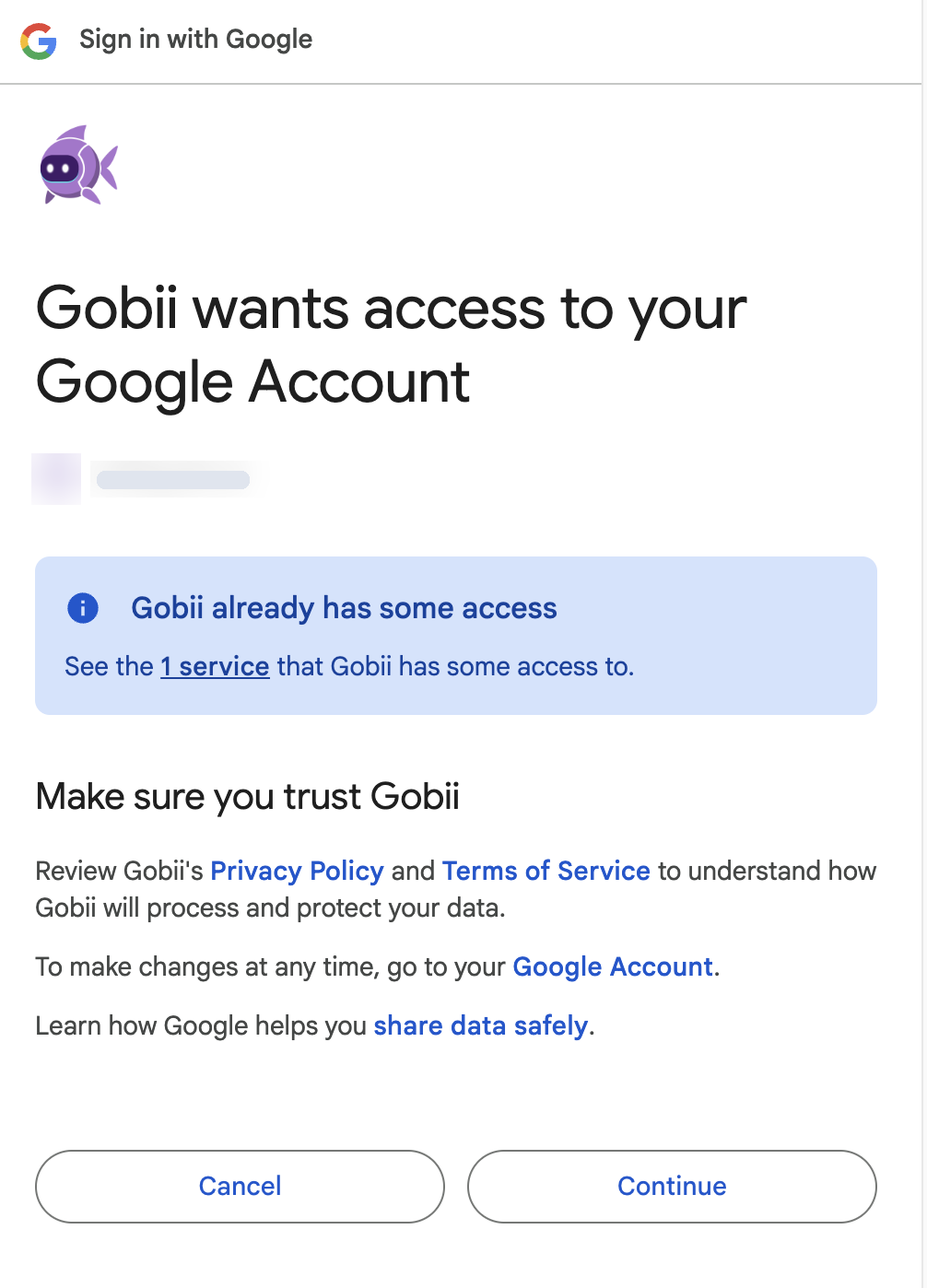
- Complete the Google authorization flow.
- Back in Manage integrations, click Select Files on the Google Drive row.
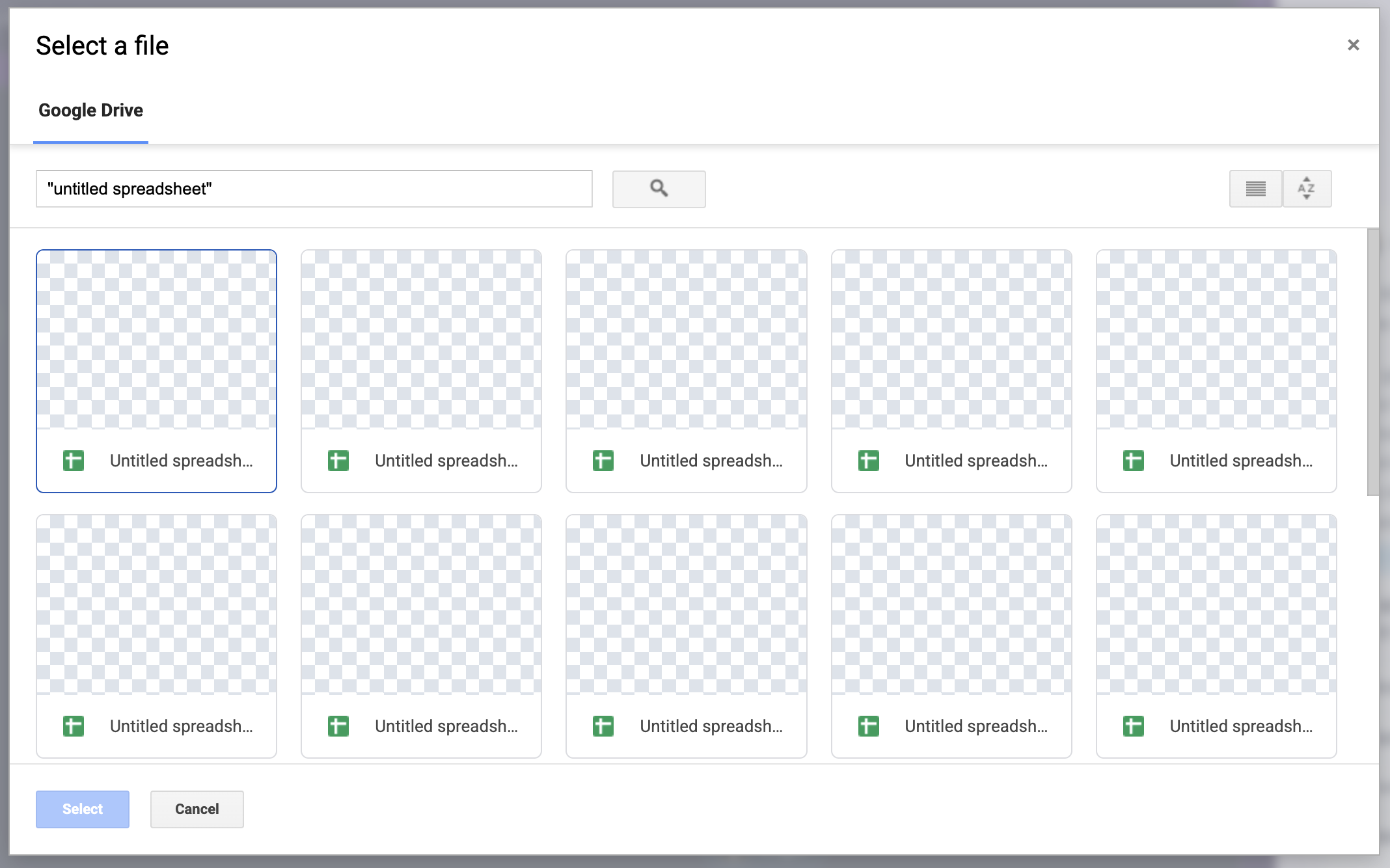
- Choose the spreadsheet files this Gobii should be allowed to access, or skip file selection if you want the Gobii to create a new spreadsheet.
- Return to chat and send a small test request, such as:
List the tabs in the selected Q2 sales tracker.
The connection uses selected Google Drive files. If the Gobii cannot see a spreadsheet, choose that spreadsheet through the Google Drive picker before asking it to read or update the file. Gobii cannot search across your Drive for files you have not selected.
Give a good Sheets request
For existing sheets, include:
- The spreadsheet name, URL, or ID.
- The worksheet tab name, if you know it.
- The range or columns involved.
- Whether the Gobii should read, append, replace, clean, format, or chart.
- What should require approval before writing.
Examples:
Read
Leads!A1:H200, find duplicate companies, and propose cleanup changes before editing anything.
Append these five prospects to the selected sales tracker. Use the existing column order and tell me how many rows were added.
Create a new spreadsheet called
Austin SaaS Leads, add columns for company, website, employee count, source, and notes, then format the header row and freeze it.
Build a chart from the
Pipelinetab showing opportunities by stage. If the data needs helper columns, add them and tell me what changed.
Existing sheets versus new sheets
For an existing spreadsheet, select it through Google Drive first or provide a concrete spreadsheet URL or ID for a file you have granted. If the file is not available to Gobii, it will need you to select it before it can continue. Gobii cannot browse Drive to discover files that have not been granted.
For a new spreadsheet, ask Gobii to create one and give the title and data you want included. If you do not specify columns, Gobii can choose safe, obvious defaults for the workflow and then polish the sheet with baseline formatting.
Safer write workflows
Spreadsheet writes can affect shared operational data. Use tighter instructions when the sheet matters.
- Ask for a preview before bulk edits.
- Prefer appending rows over replacing ranges when possible.
- Specify the worksheet and range.
- Ask Gobii to read back the changed range after writing.
- Use a test tab or copy of the sheet for new workflows.
- Require approval before deletion, broad overwrites, outreach, purchases, or account changes.
Example:
Before editing the production tracker, inspect the columns and propose the exact rows you would change. Wait for approval before writing.
Large or complex sheets
Gobii's Sheets engine can work with large and complex spreadsheets more efficiently than manual copy-paste workflows. For best results:
- Narrow the request to the relevant tabs or ranges.
- Tell Gobii which columns are keys, statuses, dates, or numbers.
- Ask it to work in batches for large updates.
- Ask it to preserve existing formatting unless you want a full cleanup.
- Have it summarize changed rows and any skipped rows.
Troubleshooting
The Gobii cannot find my sheet. Select the spreadsheet through the Google Drive picker. The native connection is file-scoped, so a spreadsheet may be invisible until you choose it.
The wrong tab was used. Ask Gobii to list tabs first, then restate the exact tab and range.
A write looked risky. Tell Gobii to stop, read the affected range, and summarize what changed. For important sheets, ask for a proposed edit plan before the next write.
Formatting or charts failed. Ask Gobii to inspect spreadsheet metadata and retry with the actual sheet ID and chart range. Formatting and chart operations depend on the sheet's internal IDs, not just visible tab names.
Authorization failed or expired. Reconnect Google Drive from the integration prompt or app settings, then reselect the spreadsheet if needed.